Working with Agent File - What goes where in the clearxx Assistant
The clearxx Assistant works best when it knows who you are, how you like to work, and what your current project is about. This guide shows you where to put each piece of information so that the Assistant really sees it, without wasting time or effort.
In short:
Memory holds what is true for everything you do.
A Folder (or project you are working on) holds what is true for one project or task. You can run multiple chats within one Folder.
Knowledge holds big piles of material to look things up in.
Create and keep the original files on your own computer. Either copy content of those files into the clearxx Assistant, or add entire files.
The Big Idea
Think of the Assistant as a new colleague that is very smart, but knows nothing about you and your work:
| At the desk | In the clearxx Assistant | What it is like |
|---|---|---|
| A notebook that is always open | Memory | Who you are and the rules that apply to everything you do |
| A project folder with an instruction sheet | Folder | What this one project is about, plus the few documents the colleague must read completely |
| A filing cabinet down the hall | Knowledge | A big library. Your colleague only fetches the pages that match your question |
If you put the right thing in the right place, the Assistant sees it when it should. If you put it in the wrong place, it may be ignored, or only half of it may be read.
Everything at a Glance
| What you have | Where it goes | Does the chat see it? | What you do |
|---|---|---|---|
| Your global files: Soul, User, Skill, Agents. They apply to everything you do | Memory (user settings, Personalization) | Yes, always, in every chat | Copy and paste the text from the files on your computer. Keep it short |
| Your global rules, such as "never guess" | Memory | Yes, always | Add them to the Agents |
| Short instructions for one project | The System Prompt of a Folder | Yes, always, in every chat started inside that Folder | Write the text into the field or copy/paste it from your local computer. Start your chats directly from the Folder |
| Your project files: Soul, User, Skill, Agents specifically written for this project | Added to the Folder | Whole file, only if you activate a setting to use the whole file, flip the switch. Otherwise the chat only sees pieces of it | Add the file, then flip the switch (see Step 3) |
| Other small documents the chat must read completely | Added to the Folder | Same as above, flip the switch | Same. Small files only |
| Big piles of documents to look things up in | First added in Workspace as Knowledge, then attached to the Folder | Only the best-matching pieces | Leave the switch alone. This is for lookup only |
| One document for one chat only | Attached in the chat | Whole file only if you flip the switch | Flip the switch. Small files only |
One rule to remember: the Assistant only reads a whole file if you flip the switch. Without it, you only get pieces of the file, and parts of your instructions can be missing without any warning.
Step 1: Keep Your Files on Your Computer
The clearxx Assistant is not a place to keep your original files. Treat what is in the Assistant as a copy, and keep the master on your own computer.
Create a folder structure on your local computer:
clearxx_assistant_files
├── global_agent_files
│   ├── global_soul.txt
│   ├── global_user.txt
│   ├── global_skill.txt
│   └── global_agents.txt
├── folders-projects
│   └── project0001_payroll-check
│   │   ├── project0001_soul.txt
│   │   ├── project0001_user.txt
│   │   ├── project0001_skill.txt
│   │   ├── project0001_agents.txt
│   │   ├── project0001_system-prompt.txt
│   │   └── (additional documents, no naming convention required)
│   └── project0002_question-and-answer-round
│       ├── project0002_soul.txt
│       ├── project0002_user.txt
│       ├── project0002_skill.txt
│       ├── project0002_agents.txt
│       ├── project0002_system-prompt.txt
│       └── (additional documents, no naming convention required)
└── knowledges
    └── kb0001_payroll-regulations
        └── (the documents for this Knowledge, no naming convention required for the files in the KB)
The names on your computer match the names in the Assistant: the folder project0001_payroll-check on your computer becomes the Folder project0001_payroll-check in the clearxx Assistant. That way you always know what belongs where.
Always change the file on your computer first, then update the copy in the Assistant. If you only change it inside the Assistant, your master and your copy drift apart.
What are Soul, User, Skill and Agents?
| File | It answers | Example |
|---|---|---|
| Soul | Who should the Assistant be? | "You are a careful, patient business analyst." |
| User | Who am I? | "I am a consultant. I work with spreadsheets every day." |
| Skill | How do I like to work? | "Explain first, then give me a short list." |
| Agents | What are the rules? | "Never guess. Say 'I don't know' instead." |
Keep each file short. A few clear sentences work better than a long text.
Step 2: Global Information in Memory
Memory is the one place that applies to every chat, whatever Folder it is in. Use it for your global Soul, User, Skill and Agents.
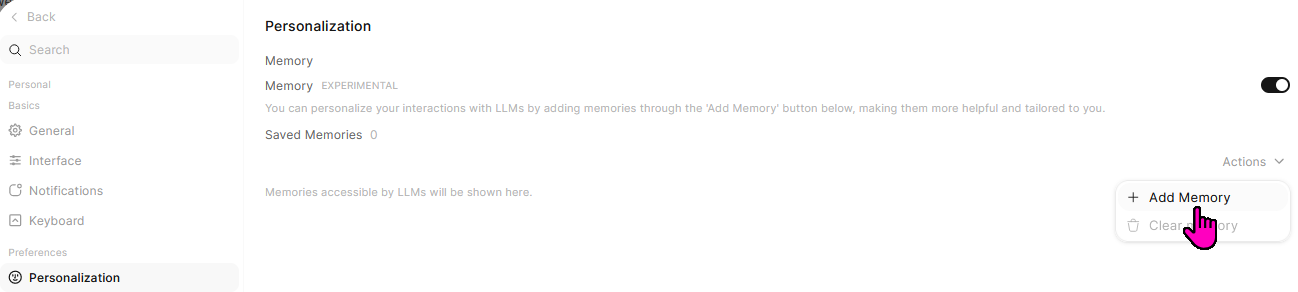
- Open your user settings and go to Personalization.
- Click Actions, then Add Memory.
- Choose the Type, paste the text, and click Add. Leave Path empty.
Memory has two types. Use them like this:
| Type | Use it for |
|---|---|
| User | Your Soul and User texts, which describe you and how you work |
| Context | Your Skill and Agents texts, which describe the role and the rules |
Switch between User and Context by clicking on the word.
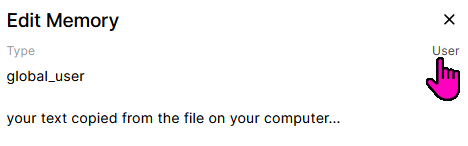
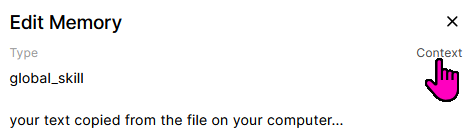
Add one memory for each of the four agent files.
To identify them, add the name of the agent file in the first line of the memory. Then copy/paste the text from the file which you have on your computer.
global_soul: ...global_user: ...global_skill: ...global_agents: ...
Keep it short. Memory is sent with every message in every chat, so a long text makes everything slower.
A rule worth adding to your global_agents text. Assistants sometimes make up an answer when they don't know one. This wording helps:
Answer each part of a question separately. For any part you cannot answer from what you were given, write "I don't know" for that part. Never guess and never make up a value.
It reduces guessing, but it does not remove it completely. Check important answers against your documents.
Step 3: Project Information in a Folder
A Folder is a project. Everything you add to it is only available in chats that you start inside that Folder.
Create the Folder
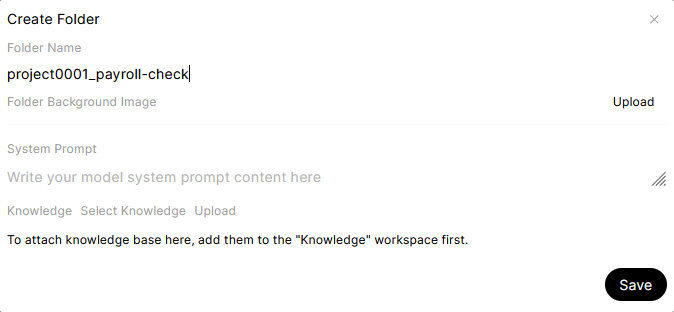
- In the sidebar, click the + next to Folders and choose New Folder.
- Give it a name that matches the structure from your local computer, such as
project0001_payroll-check. - Open the Folder settings (three dots next to the Folder, then Edit).
Write the System Prompt
The System Prompt is a short text that is always read in every chat in this Folder. Use it for what is special about this project: what it is, which files to rely on, and the language and format you want. Your global rules already come from Memory, so don't repeat them.
Prepare this before you create the Folder and keep the prompt text in a txt file on your computer in the same folder as the other files for this project.
Add your project files and flip the switch
- In the Folder settings, click Upload Files and choose your project files from your computer (Soul, User, Skill, Agents, and any other small document).
- Click the file's name to open its preview.
- In the top right of the preview, flip the switch. By default it reads Using Focused Retrieval, which only gives the Assistant pieces of the file. After you flip it, the Assistant reads the whole file.
- Do this for every file you want read completely. Then click Save.
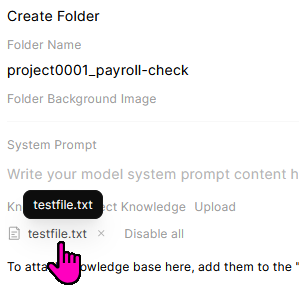
When you upload a file to the Folder, click on the file. A new window opens with the content of the file.

IMPORTANT: - You now have to turn on the switch for Using Entire Document. Only then will the chat see the entire content.
Two important points:
- Small files only. A file that is read completely is sent with every message. A page or two is fine. A long report is not. Use the Knowledge for those.
- Check the switch again every time you replace a file. A newly added file starts in the default setting which is off.
Start your chats inside the Folder
Click the Folder in the sidebar first, then write your message. A chat that you start outside the Folder does not see the System Prompt or the files.
IMPORTANT: - A subfolder does not inherit anything from its parent Folder. If you use subfolders, set up each one on its own.
Step 4: Big Piles of Documents in a Knowledge
A Knowledge is a library of documents. It is meant for big piles that you look things up in: regulations, manuals, research, old reports.
When you ask a question, the Assistant only gets the pieces that best matches it. This is what you want for a big library. It is not what you want for instructions, because pieces can be missing.
- Create the Knowledge in the Workspace first and add the documents there.
- Then open your Folder settings, click Select Knowledge (either all the files in a Knowledge or individual files from it), and choose it.
- Don't touch the switch for a Knowledge. Leave it as it is.
- You don't need special names for the files inside a Knowledge. Clean documents (text, no pictures) work best.
Step 5: One Document in One Chat
If you only need a document for a single conversation, attach it directly in the chat. As with Folder files, flip the switch if the Assistant must read the whole file, and keep the file small.
Naming: Keep It Simple
| What | How to name it | Example |
|---|---|---|
| Main folder (on your computer) | clearxx_assistant_files |
clearxx_assistant_files |
| Your global files | global_ and the file type, kept in the folder global_agent_files |
global_soul.txt, global_user.txt, global_skill.txt, global_agents.txt |
| Memory entries (in the clearxx Assistant) | Start with the label | global_soul: ... |
| A Folder (a project) | Project, a four-digit number, an underscore and a short project name with hyphens between words. Kept in the folder folders-projects. Use the same name on your computer and in the clearxx Assistant |
project0001_payroll-check |
| Project files that go into a Folder | project, the same four-digit number, an underscore and the file type |
project0001_soul.txt, project0001_user.txt, project0001_skill.txt, project0001_agents.txt, project0001_system-prompt.txt |
| Additional documents in a project | No naming convention required | |
| A Knowledge | kb, a four-digit number, an underscore and a short topic with hyphens between words. Kept in the folder knowledges. Use the same name on your computer and in the clearxx Assistant |
kb0001_payroll-regulations |
| Files inside a Knowledge | No naming convention required |
Because every project file starts with the number of its project folder, you can see at a glance which files belong together. The number goes up by one for every new project (Project0002_...). Knowledges have their own running number, because one Knowledge can be used by several projects.
Example 1: A Q&A Session to Plan your Work
Goal: you want the Assistant to ask you questions, so that together you find how to approach your work.
On your computer
clearxx_assistant_files
├── global_agent_files
│   ├── global_soul.txt
│   ├── global_user.txt
│   ├── global_skill.txt
│   └── global_agents.txt
├── folders-projects
│   └── project0002_question-and-answer-round
│       ├── project0002_soul.txt
│       ├── project0002_user.txt
│       ├── project0002_skill.txt
│       ├── project0002_agents.txt
│       ├── project0002_system-prompt.txt
│       └── (additional documents, no naming convention required)
└── knowledges
    └── kb0002_clearxx-tools
        └── (the documents for this Knowledge, no naming convention required for the files in the KB)
In the clearxx Assistant
| Item | What goes in it |
|---|---|
| Memory | Your four global texts, including the "never guess" rule |
Folder project0002_question-and-answer-round |
Created for this Q&A, with the same name as on your computer |
| System Prompt | The text from project0002_system-prompt.txt, pasted into the System Prompt field: "This Folder is for Q&A sessions to find where AI can save me time. Use the attached files. Answer in English." |
project0002_soul.txt |
The Assistant is a curious, patient interviewer, add more as needed |
project0002_user.txt |
A short description of your job and goals, requirements |
project0002_skill.txt |
Copy and paste the Q&A skill from the clearxx Article. For other skills, add what you want the clearxx Assistant to do |
project0002_agents.txt |
Add rules, dos and don'ts |
| Additional document | A short summary of what you have already tried with AI, with any name you like. Also helpfull: more specific information about the work are doing. All files added to the Folder have the switch flipped to on |
Knowledge kb0002_clearxx-tools |
The overview of what the clearxx tools can do (a txt file with all the clearxx user documentation), so the ideas fit what is possible. Attached with Select Knowledge, switch untouched |
How you use it: click the Folder, start a new chat, and write "Start the Q&A." Every session is a new chat inside the same Folder.
Example 2: A Real Project, the Monthly Payroll Check
Goal: every month you check a client's payroll data and report deviations.
On your computer
clearxx_assistant_files
├── global_agent_files
│   ├── global_soul.txt
│   ├── global_user.txt
│   ├── global_skill.txt
│   └── global_agents.txt
├── folders-projects
│   └── project0001_payroll-check
│       ├── project0001_soul.txt
│       ├── project0001_user.txt
│       ├── project0001_skill.txt
│       ├── project0001_agents.txt
│       ├── project0001_system-prompt.txt
│       └── (additional documents, no naming convention required)
└── knowledges
    └── kb0001_payroll-regulations
        └── (laws, collective agreements, guidelines, no naming convention required for the files in the KB)
In the clearxx Assistant
| Item | What goes in it |
|---|---|
| Memory | Your four global texts. They already say who you are and that the Assistant must never guess |
Folder project0001_payroll-check |
One Folder for this client's payroll, with the same name as on your computer |
| System Prompt | The text from project0001_system-prompt.txt, pasted into the System Prompt field: "This Folder is for the monthly payroll check of one client. Use the attached files. Show deviations as a table. Answer in English." |
project0001_soul.txt |
The Assistant is a careful payroll analyst |
project0001_user.txt |
You are a consultant who checks the data for the client, and you know the basics |
project0001_skill.txt |
How you check: compare totals, flag differences, list open questions at the end |
project0001_agents.txt |
Name the file and the row for every finding. Don't correct values yourself. Say "I don't know" when a value is missing |
| Additional documents | Two small documents with any names you like: one explains the client's rules, the other explains the meaning of the columns. All six files added to the Folder have the switch flipped |
Knowledge kb0001_payroll-regulations |
The big pile: laws and agreements, looked up when a question needs them. Attached with Select Knowledge, switch untouched |
How you use it each month: click the Folder and start a new chat. Attach a small, cleaned-up extract of the monthly data directly in the chat and flip the switch so the Assistant reads all of it. Then ask it to check the extract against the policy. The Assistant already knows the rules, the role and the client from the Folder, and it looks up regulations in the Knowledge when needed.
Common Mistakes
| Mistake | What happens | What to do |
|---|---|---|
| You start the chat outside the Folder | The System Prompt and the files are not seen | Click the Folder first, then write |
| You forget to flip the switch | The Assistant only gets pieces of the file, and parts of your instructions are missing | Flip the switch for every file that must be read completely |
| You put a long document in a Folder and flip the switch | Everything becomes slower | Put long documents in a Knowledge instead |
| You put rules in a Knowledge | They may not be seen when they matter | Rules go into Memory or the System Prompt |
| You change a file only inside the Assistant | Your master on your computer is out of date | Change it on your computer first, then update the copy |
| You trust an answer without checking it | The Assistant can still be wrong | Check important answers against your documents |